Tuesday, November 1, 2011

Activity Feeds now available in Dynamics CRM 2011

Microsoft recently released Activity Feeds in its November update of Dynamics CRM Online 2011. These would however automatically be available to only those CRM organizations that one would subscribe to from this point on. For all existing organizations you need to download it from the pinpoint site http://dynamics.pinpoint.microsoft.com/en-IN/applications/microsoft-dynamics-crm-activity-feeds-12884926310

We installed this solution on CRM Online organization but I believe this can also be imported to an On-Premise organization.


It is quick to install and you can get it up and running in a matter of few minutes.


After you import the solution, you would find the following changes to your sitemap
A new option “What’s New” added to the Workplace.


Configuration options in Settings --> System


Lets first configure the entities to start receiving feeds from them.
You need to create a new Post configuration record through the Activity Feeds Configuration option. You need to create one record each for each entity that you want to setup for Activity Feeds.

In the entity name you need to enter the CRM entity logical name. So instead of Case, you would enter incident.


After you click on Save, you will find the Rules auto-created for this entity. I understand that these rules are predefined and there is no option to create a new rule. Also these rules are only available for certain entities. When I create a record for account entity, no rules were created for them.


For this configuration to take effect, you need to click on the All Customizations ribbon button. This will publish the entity customization for the set entity.


In our case, when we click on the All Customizations, it will modify the Case entity form to add the Record Wall.


If you have multiple forms designed for an entity, the publish fails.



You need to then manually add the tab for Record Wall. Instructions for these are provided here http://help.crm.dynamics.com/help/5.0.9688.1531/1033/LIVE/content/source_af_add_record_walls.htm
Once an entity is set up for activity feeds, you can then open any record for that particular entity and click on Follow to start receiving updates for that record.
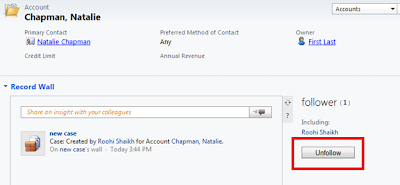


Any updates to the record wall of the records that you choose to follow would be displayed to you on your Personal Wall.
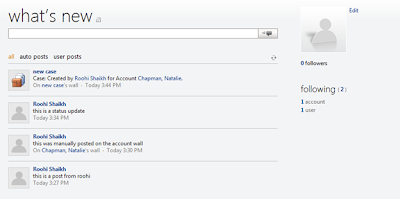

With the auto-feed rules automatically created for the case entity, each time a new case is created or any of the actions on the case is performed that is being tracked by the activities feed, an update would automatically be posted for the Case on the its wall and would also be reflected on the wall of the users that follow that record.

You can also follow the feeds of another user. For this you need to open the User record and then click the follow button on the user record wall to start receiving updates posted by that user.


You are now set to collaborate in CRM on different CRM entities including custom entities!


To make the wall available on Custom entity you need to create a record in the Post configuration for the custom entity. In the entity name type the schema name of the custom entity and check the Enable walls checkbox.


Make sure you publish this custom entity after creating the configuration record.

Monday, October 31, 2011

Team Ownership now available in CRM 2011

In CRM, an entity could be designed to be User Owned or Organization owned. The User Owned ownership setting has now been changed in CRM 2011 to be User or Team Owned. This means that you can now assign a record to either a Team or an individual owner.

Let us now explore the behavior of records owned by a Team.

Using the Assign option you can now assign to a user or a Team.


Earlier you could only select a user.


In CRM 2011, you can define Teams and also assign Roles to the team. With each team, a Queue specific to the team is also created alongside.

The security role permission level has also been modified to accommodate the concept of Team. The user level permission now also extends to the team. This means that a user with user level permission can now work on records owned by themselves as well those that is owned by the team to which they belong.


The one that gives higher/maximum permission is applied to the user. Say a user does not have permission to invoice module. But the team to which they belong have the permission to Create/Read/Write user level invoice records, an Invoice assigned to the Team would be visible to the user.

All users of a team would have access to the record assigned to the Team.

With the concept of Team they have tried to reduce the need to Share the records. Earlier if you needed to provide another user access to a record owned by you, you had to share the record with them. Now if they are part of your team they have access to your records.

To explain technically, a new attribute Owning Team has now been added to each User/Team Owned entity. The OwningTeam will store the name of the Team if it has been assigned to a Team.


You can now programmatically assign Team to a record using the Assign Request. You can check here for the code. http://msdn.microsoft.com/en-us/library/gg327897.aspx

Tuesday, October 18, 2011

Enable Scripts on Bulk Edit form in CRM 2011

CRM 2011 includes the feature to enable script on the bulk edit form. By default the scripts are disabled for bulk edit forms.

To enable the script for Bulk edit forms check the below syntax

<event
active=["0" "1" "true" "false"]
application=["0" "1" "true" "false"]
attribute="String"
BehaviorInBulkEditForm="String"
eventType=["DataEvent" "ControlEvent"]
name="String">
<dependencies />
<Handlers />
<InternalHandlers />
</event>

See below detailed descriptions for the attributes.


Steps to enable the script on bulk edit form:
- Include the entity for which you would like to enable the bulk edit script and export the solution.
- Open the customization.xml
- Add BehaviorInBulkEditForm="Enabled" to the event handlers as shown below


<event name="onload" application="false" active="false" BehaviorInBulkEditForm="Enabled" >
<event name="onsave" application="false" active="false" BehaviorInBulkEditForm="Enabled" >

- Save and Import the solution, publish it.
- Now your script will work on bulk edit form.

This way you can let your users use bulk edit freely with your custom script also executing just fine. Earlier, usually if there was custom business logic to be performed plugins were advised as it would allow the custom business logic to be executed for all records that were edited through Bulk Edit.

Friday, October 14, 2011

Different operators used with workflow

There are six different operators used in e workflow.

1. Set to: This operator is used to set value of the field of any data type.


2. Append with: This operator can only be used with text field. It will append specified field's value or the default value to the existing value. This operator has introduced in CRM 5.


3. Clear: This operator can be used with all data types. This will clear the field's value.


4. Increment by: This operator can only be used with decimal fields. This will increment the existing value with the specified field's value or default value.
5. Decrement by: This operator can only be used with decimal fields. This will decrement the existing value with the specified field's value or default value.
6. Multiply by: This operator can only be used with decimal fields. This will multiply the existing value with the specified field's value or default value.


Bulk or Mass edit is the great feature in CRM that allows us to edit multiple records at a time. But it will only allows us to set the value, we cannot perform above operations in bulk edit. With the help of workflows, we can perform above operations on multiple records.

Monday, October 10, 2011

Working with CRM 2011 Solutions

With Dynamics CRM 2011, Microsoft goes one step further in simplifying the process of moving the customizations from one system to another. In the CRM 2011 you can now simply export and import the customizations in the form of solutions. There are two type of solution in the CRM 2011.

1. Default Solution: This is the customizations of your entire CRM 2011 Organization.

2. Managed Solution: Managed solution is a packed and user can install it on their machine. The benefit of the Managed solution is that, it can be uninstalled if you do not wish to use any of its components any more. The deleting/uninstalling does not impact any other customization in the system. Unlike CRM 4.0 if you want to remove something, then you need to remove the fields from the Form, delete from the entity and remove the buttons from the ISV config. But in the CRM 2011, if you have imported the managed solution then you need to simply delete this solution, it will automatically remove all the components included in the solution like, Forms Customizations, Fields and Buttons.

It is advisable to package products as managed solutions.

3. Un-Managed Solution: We generally use the unmanaged solution during the development process. An un-managed solution cannot be deleted like the Managed solution. Changes made by importing the unmanaged solution are permanent and is included as a part of the existing entity customizations. If we have imported the Solution on any system as Un Managed, and if we need to remove the that, then we need to remove the each item manually from CRM.

Export the Solution:

1. Export the Default Solution: If you want to take a backup of your entire organization customization you can export the Default customization. To export the default solution, please open the CRM.

Go to the Settings --> Customizations, as shown in the below screenshot.


Now click on “Customize the System”, it will open the following window.


As shown in the above screenshot, you need to click on the “Export Solution” button, to export all the customizations from the CRM.

We generally export these customizations when we need to move all the customizations from one system to another. If you have any managed solution already imported in your organization. Exporting the default solution will not let you import this customization set on a new organization unless you import that managed solution on the new organization as well. The managed solution is not inherently included when the default solution is exported.

2. Export the Managed Solution: To export the solution as Managed, you need to create a solution. And add the required component in this solution.

To create the new solution, open the CRM and go to the Settings --> Solutions as show in the below screenshot.


Now click on the new button to create the New Solution. And you can add the required component in this solution. Suppose if we want to export the account entity customizations, then the solution will be as follows.


As shown in the above screenshot, we have created a solution in which we have added the Account entity. now you need to click on the Export Solution button to export the account entity customization.

In the Export Solution wizard, on the 4th Screen you need to select the option to export the customization as managed. As show in the below screenshot.


When you export the solution as a managed solution, it only exports that part of the entity customization that was not included in the default entity design. This means to say that only custom attributes or custom form layouts will be exported for the entity when the solution is exported as Managed solution.

When you import the managed solution it will merge these customizations with the existing entity design on the system where it is being imported. This allows for the original entity customizations not being lost or overridden with Import and export of customizations as was the case with CRM 4.0.

3. Export the Un-Managed Solution: To export the Solution as Un-Managed, you need to select the “Unmanaged” option, as shown in the below screen.


When you export the solution as Unmanaged, it exports the entire entity customization and when it is imported on another organization, existing entity customization on that organization would be overridden

Import the Solution:

To import the Managed/Unmanaged solution, please open the CRM, and Go to the Settings --> Solutions and click on the Import button. It will display the following window.


Now you need to Browse the .zip or .cab solution file to import the CRM 2011 Managed or Un-Managed customizations.

Delete or Un-Installing the Solution: To uninstall the Managed solution you need to delete the solution from the CRM. If you uninstall the Managed solution then all components which is installed by you managed solution will be deleted. Say for example you added 2 custom fields in the account entity as a part of a managed solution. If you delete/uninstall this solution from that system, then these two fields will automatically be deleted without impacting any other part of the entity customization.

To delete the solution, open the CRM and go to Settings --> Solutions and select the solution and click on the delete button. As shown in the below screenshot.


Issues faced with managing the solutions:
• Suppose if you install the Managed solution on the any CRM and this solution contains the some html web resources. And these are then manually added to the SiteMap and entity ribbons etc. Deleting this managed solution will give the dependency error. You cannot delete this solution because the components of this solution are used elsewhere in the project and not as a part of the managed solution. As shown in the below screenshots, we are trying to delete the below Managed Solution.


It will give the following error.


After clicking on the Details link, it will clearly shows the dependencies. As shown below.


• Also if you want to Transfer the plug-in steps from one machine to another machine through the Solution, you need to make sure that the plug-in assembly is set to be registered on the database. If it is set to Disk importing this solution on another system would result in error as this assembly would not be present on the target system

Wednesday, September 28, 2011

Debugging Silverlight Web Resources in CRM2011

In CRM2011, Silverlight Web resources can be debugged in Microsoft Visual Studio. For this you need to follow below steps:

• Build your Silverlight application.

• Upload the built version of the .xap file from the Web application project ClientBin folder.

• View your Silverlight application in the context it is designed to be used in.

• In your Silverlight application project, from the Visual Studio menu, select Debug and then Attach To Process….

• In the Attach to Process dialog box, find an iexplore.exe process where the Type column value is Silverlight, x86. (See below screen shot)


• Select that process and press Attach to close the dialog box and start debugging.

• In your Silverlight application project, set a breakpoint.

• Refresh the browser window or, in the Silverlight application, perform the action that you need to test your code.

Hope this help

Wednesday, September 21, 2011

Working with Charts in CRM 2011

Dynamics CRM 2011 provides us the Charts, with the help of the Charts we can Graphically represent the Organization data. We can create the System Charts and User Charts in the CRM. The System Chats can be viewed by the All users of the Organization and the User Charts can only be view by those whom the Chart Assigned or Shared.

We can create the following different form of charts:
• Column
• Bar
• Line
• Pie
• Funnel

To create a chart, specify fields to be displayed on the category and series axes. Normally, the category axis displays data from numeric or non-numeric fields. The series axis displays data from numeric fields.

The Chart Designer supports creating only single-series charts. To create multi-series charts or comparison charts, we need to write the code.

Also we can Export and Import the Charts.

Note: We can create and attach charts to only those record types in Microsoft Dynamics CRM that support the new ribbon interface in the Web application. This is because all of the chart controls are only present in the ribbon interface of Microsoft Dynamics CRM.

We can create the charts from the CRM Views or by the Coding.

Create the Charts through CRM Views: You need to create the CRM view on the required Entity and then create the chart on this. As shown in the below screen shot we have create the view of all opportunity and then create the Sales Pipeline Chart for that view. As shown in the below screenshot.


Now open the Opportunity Entity and Create the Chart as shown in the below screenshot.


Create the Chart by the Coding:

Below we have given that how to create the Sample Chart through Coding.

To create the chart the Main things are the Fetch XML, Data XML and the Presentation XML.
 Suppose if you need to create the Sales Pipe line funnel then you need to create the following three items.
1.       Fetch XML View: For creating the fetch xml view, you need to create the Saved Query for that as given below.

                           savedquery newSavedQuery = new savedquery();
               newSavedQuery.name = "Sales Pipeline Funnel";
               newSavedQuery.fetchxml = @"
                                      <fetch version='1.0'
                                             output-format='xml-platform'
                                             mapping='logical'
                           distinct='false'>
                                             <entity name='opportunity'>
               <attribute name='name'/>
               <attribute name='customerid'/>
                         <attribute name='estimatedvalue'/>
               <attribute name='statuscode'/>
               <attribute name='opportunityid'/>
               <order attribute='name' descending='false'/>
                           </entity>
                                      </fetch>
                       ";
               newSavedQuery.returnedtypecode = EntityName.opportunity.ToString();
               newSavedQuery.layoutxml = @"<grid name='resultset' object='3' jump='name'
               select='1' icon='1' preview='1'>
               <row name='result' id='opportunityid'>
                       <cell name='name' width='300' />
                       <cell name='customerid' width='150' />
                                      <cell name='estimatedvalue' width='100' />
                                      <cell name='statuscode' width='100' />
               </row>
                                </grid>";
               newSavedQuery.querytype = new CrmNumber();

 newSavedQuery.querytype.Value = SavedQueryType.MainApplicationView;

 Guid viewId = service.Create(newSavedQuery);
2.       Presentation: Then you need to write the following Presentation for that.
string presentationXml = @"
    <Chart Palette='BrightPastel'>
        <Series>
            <Series _Template_='All' ShadowOffset='2' 
BorderColor='64, 64, 64' BorderDashStyle='Solid' 
BorderWidth='1' IsValueShownAsLabel='true' 
Font='Tahoma, 6.75pt, GdiCharSet=0' 
LabelForeColor='100, 100, 100' 
CustomProperties='FunnelLabelStyle=Outside' 
ChartType='Funnel'>
    <SmartLabelStyle Enabled='True' />
    <Points />
            </Series>
        </Series>
        <ChartAreas>
            <ChartArea _Template_='All' BackColor='Transparent' 
BorderColor='Transparent' BorderDashStyle='Solid'>
<Area3DStyle Enable3D='True' IsClustered='True' />
            </ChartArea>
        </ChartAreas>
        <Legends>
            <Legend _Template_='All' Alignment='Center' 
LegendStyle='Table' Docking='Bottom' 
IsEquallySpacedItems='True' BackColor='White' 
BorderColor='228, 228, 228' BorderWidth='0' 
Font='Tahoma, 8pt, GdiCharSet=0' 
ShadowColor='0, 0, 0, 0' ForeColor='100, 100, 100'>
            </Legend>
        </Legends>
        <Titles>
            <Title _Template_='All' 
Font='Tahoma, 9pt, style=Bold, GdiCharSet=0' 
ForeColor='102, 102, 102'>
            </Title>
        </Titles>
        <BorderSkin PageColor='Control' 
            BackColor='CornflowerBlue' 
            BackSecondaryColor='CornflowerBlue' />
    </Chart>";
 
3.       Data Xml: Below we have created the Data XML for that. In the Data XML we need to provide the Presentation and the Fetch XML view Id, as given below.
// Set the data XML string.
string dataXml = @"
    <datadefinition>
        <fetchcollection>
            <fetch mapping='logical' 
count='10' 
aggregate='true'>
<entity name='opportunity'>
    <attribute name='estimatedvalue_base' 
        aggregate='sum' 
        alias='sum_estimatedvalue_base'/>
    <attribute name='stepname' groupby='true' alias='stepname'/>
    <order alias='stepname' descending='false' />
</entity>
            </fetch>
        </fetchcollection>
        <categorycollection>
            <category>
<measurecollection>
    <measure alias='sum_estimatedvalue_base'/>
</measurecollection>
            </category>
        </categorycollection>
    </datadefinition>";
 
// Create the visualization entity instance.
savedqueryvisualization newSavedQueryVisualization = new savedqueryvisualization();
 
newSavedQueryVisualization.name = "Example Visualization";
newSavedQueryVisualization.presentationdescription = presentationXml;
newSavedQueryVisualization.datadescription = dataXml;
newSavedQueryVisualization.savedqueryid = new Lookup();
newSavedQueryVisualization.savedqueryid.Value = viewId;
 
Guid newSavedQueryVisualizationId = service.Create(newSavedQueryVisualization);
After doing the above things please call the Publish request, As given below.
//Publish the Opportunity entity customizations.
PublishXmlRequest request = new PublishXmlRequest();
 
request.ParameterXml = @"
      &ltimportexportxml&gt
            &ltentities&gt
&ltentity&gtopportunity&lt/entity&gt
&lt/entities&gt
            &ltnodes/&gt
            &ltsecurityroles/&gt
            &ltsettings/&gt
            &ltworkflows/&gt
        &lt/importexportxml&gt";
   // Execute the request.
PublishXmlResponse response = (PublishXmlResponse)service.Execute(request);
 For more details about the Charts you can use the following link.
Also you can refer the CRM 2011 SDK.


Tuesday, September 13, 2011

How to interact with CRM form fields from within the Silverlight page

At times you may have a need to interact with the CRM form to read/update back the latest information after the processing completes from a custom application.

Say we add a button on the Entity form and when user will click on this button then we can read as well as set the value of the entity form fields. Below we have given the example to read the activityparty.

When you click on the button then it will open a child window. To access the CRM form we will need to use the Parent window from which this child window was called. Here we are reading the values of the Sender attribute of the Email.

dynamic win = HtmlPage.Window;
dynamic opener = win.parent.opener;
ScriptObject xrm = (ScriptObject)opener.GetProperty("Xrm");
ScriptObject page = (ScriptObject)xrm.GetProperty("Page");
dynamic dynamicPage = page;

dynamic lookupItems = dynamicPage.data.entity.attributes.get("to").getValue();
HtmlPage.Window.Invoke("readLookup", lookupItems);

“To” attribute is of the type lookup and it will be an array of objects. To read the values for this lookup you need to write the following script on the html page.

function readLookup(source) {

if (source == null) {
return;
}

var array = new Array();
array = source;
for (i = 0; i < array.length; i++) {
alert(array[i].entityType);
alert(array[i].id);
alert(array[i].name);
}

}

Now say you want to update the Subject of the Email from within the Silverlight custom application, you can refer the CRM form and update the controls on the form as shown below

dynamicPage.data.entity.attributes.get("subject").setValue("Test 1234");

Since Subject is a text field it could be done as simply as above.

But to set the value for the lookup and date type of attributes, there is still more to be done. For this we need to add a java script web resource on the required entity. This web resource will contain the function to set the lookup and the date value. We then need to call this function from the Silverlight page. Code below explains how this can be done

dynamic parent = win.parent.opener;
parent.setLookupValue();
he SetLookupValue will contain the code to set the value for the lookup. As given below.

Xrm.Page.data.entity.attributes.get("regardingobjectid").setValue(array);


Hope this helps in designing richer Silverlight applications that interact better with the CRM forms.

Tuesday, September 6, 2011

Retrieve related entity records along wih the Primary entity using Retrieve Method

We have always known the Retrieve request to be able to retrieve the data of the requested entity based on the id provided. However in CRM 2011, the Retrieve request can read not only the properties of the primary entity but also the referenced entity like in a 1-N or N-N or N-1 relationship. Given that it supports all the three types of relationships it could be an advantage over the LinkEntity feature.

For example, if we want to retrieve the active contacts related to an account then, we can design the query as shown in the below code,

using (OrganizationServiceProxy _orgserviceproxy = new OrganizationServiceProxy(new Uri(OrganizationUri), null, Credentials, null))
{

//create the query expression object
QueryExpression query = new QueryExpression();

//Query on reated entity records
query.EntityName = "contact";

//Retrieve the all attributes of the related record
query.ColumnSet = new ColumnSet(true);

//create the relationship object
Relationship relationship = new Relationship();

//add the condition where you can retrieve only the account related active contacts
query.Criteria = new FilterExpression();
query.Criteria.AddCondition(new ConditionExpression("statecode", ConditionOperator.Equal, "Active"));

// name of relationship between account & contact
relationship.SchemaName = "contact_customer_accounts";

//create relationshipQueryCollection Object
RelationshipQueryCollection relatedEntity = new RelationshipQueryCollection();

//Add the your relation and query to the RelationshipQueryCollection
relatedEntity.Add(relationship, query);

//create the retrieve request object
RetrieveRequest request = new RetrieveRequest();

//add the relatedentities query
request.RelatedEntitiesQuery = relatedEntity;

//set column to and the condition for the account
request.ColumnSet = new ColumnSet("accountid");
request.Target = new EntityReference { Id = accountID, LogicalName = "account" };

//execute the request
RetrieveResponse response = (RetrieveResponse)_orgserviceproxy.Execute(request);

// here you can check collection count
if (((DataCollection)(((RelatedEntityCollection)(response.Entity.RelatedEntities)))).Contains(new Relationship("contact_customer_accounts")) &&((DataCollection)(((RelatedEntityCollection)(response.Entity.RelatedEntities))))[new Relationship("contact_customer_accounts")].Entities.Count > 0)
return true;
else
return false;
}

One limitation though, is that it is only available with the Retrieve Request and not the Retrieve Multiple request. Wonder why this has not be added for Retrieve Multiple request as this can be of great help to return all the data required in one request.

Sunday, August 28, 2011

Add a button to create a new related record

To create a new record for a related entity we need to move to that related entity view in the Main form and then use the add button there to actually open a new form for the related entity. At times this is considered time consuming and it would be good to have a button on the main form from where we can add a new related record directly.

While it is easy to add a button to call a new form, we just need to pass in the URL of the new form which is similar to the below

“http://mycrm/myOrg/main.aspx?etn=account&pagetype=entityrecord”

But what differentiates a new record from a new related record is that in related record, the common fields and mappings from the parent record are auto-filled when the new form is opened. The above URL will not copy the mapping fields from the parent record.

To open a new related record form you need to use the following url


var url = Xrm.Page.context.getServerUrl()+"main.aspx?etn= “+Child entity schema name+” &extraqs=%3f_CreateFromId%3d"+ parentRecordId +"%26_CreateFromType%3d”+Parent Entity type code +”%26etn%“+Child entity schema name+” &pagetype=entityrecord";

Hopefully this little trick would let you minimize a few clicks!

Wednesday, August 17, 2011

CRM 2011 messages using SOAP

Microsoft has provided CRM ODATA service to perform actions on CRM data. However, the ODATA service only allows you to perform basic CRUD operations on CRM entities. If you want to perform other operations like Change state or perhaps read Metadata information, you will need to access the CRM SOAP service.

You can add the reference to CRM SOAP service using the following URL.
http://Server_name/Organization_name/XRMServices/2011/Organization.svc

We have encountered various issues while trying to get our messages executed through SOAP. Here we are going to list out all the messages and the properties that are required to be set to get the SOAP message to execute successfully.

RetrieveAttribute request – This request allows you to read the metadata information of a given attribute.

TestApplication.CrmSdk.OrganizationRequest request = new TestApplication.CrmSdk.OrganizationRequest() { RequestName = "RetrieveAttribute" };

//Set all required parameters of request
request["EntityLogicalName"] = "Account";
request["RetrieveAsIfPublished"] = true;
request["LogicalName"] = "Address1_AddressTypeCode ";
request["MetadataId"] = Guid.Empty;

//Execute the request
service.Execute(request);

In call back function call end execute function to execute request and get response of request as shown in below line of code,

//end the request
TestApplication.CrmSdk.OrganizationResponse response = service.EndExecute(result);

//read the result
CrmSdk.PicklistAttributeMetadata picklist = (CrmSdk.PicklistAttributeMetadata)response["AttributeMetadata"];

In the above request make you to set the MetadataID to Guid.Empty or this message would not execute.


QualifyLead Request – This request allows you to qualify a lead and create Account, Contact and Opportunity from the lead record.

OrganizationRequest _qualifyRequest = new OrganizationRequest() { RequestName = "QualifyLead" };

//Initialize Member of qualify request as shown in below code

//set Account
_qualifyRequest["CreateAccount"] = true;

//set contact
_qualifyRequest["CreateContact"] = true;

//set opportunity
_qualifyRequest["CreateOpportunity"] = true;

//set Status
OptionSetValue status = new OptionSetValue();
status.Value = -1;
_qualifyRequest["Status"] = status;

//set currency
EntityReference currency = new EntityReference();
currency.LogicalName = "transactioncurrency";
currency.Id = new Guid(transactioncurrencyId);
_qualifyRequest["OpportunityCurrencyId"] = currency;


//set customer
EntityReference customer = new EntityReference();
customer .LogicalName = "account";
currency.Id = new Guid(accountId);
_qualifyRequest["OpportunityCustomerId "] = customer;

//set SourceCampaign
_qualifyRequest["SourceCampaignId"] = null;

//Execute the request
_service.BeginExecute(_qualifyRequest, new AsyncCallback(QualifyLeadCallBack), _service);


In call back function call end execute function to execute request and get response of request as shown in below line of code,

OrganizationResponse response = orgService.EndExecute(result);

When request execute successfully it return entityreferencecollection.We get create record using below line of code it return entityreferencecollection

EntityReferenceCollection entityCollection = (EntityReferenceCollection)response

SetState Request – Using this request we can activate/de-activate the record.

To activate/de-activate the record in Silverlight.

To activate/de-activate the record in Silverlight you have to trap “SetStateRequest”.

The member of “SetStateRequest” is given below,you have set this member.
EntityMoniker
State
Status

To trap “SetStateRequest” in Silverlight you have create object of “OrganizationRequest” and set RequestName =”SetState” , as shown in below line of code

SoapServiceReference.OrganizationRequest request = new SoapServiceReference.OrganizationRequest() { RequestName = "SetState" };

After that you have set member of SetStateRequest ,as shown in below lines of code

1. EntityMoniker
-It is of Entity reference type.In EntityMoniker you have set “Id” and “LogicalName” of record as shown in below line of code

SoapServiceReference.EntityReference ServiceActivity = new SoapServiceReference.EntityReference() { Id =accountId, LogicalName = "account" };

2. State - It is of optionset type. In state you have set value as “0” for Active or “1” for InActive. as shown in below line of code
SoapServiceReference.OptionSetValue States = new SoapServiceReference.OptionSetValue();
States.Value = 0; or States.Value = 1;

3. Status - It is of optionset type. In status you have set set value as “1” for Active or “2” for InActive. as shown in below line of code
SoapServiceReference.OptionSetValue Status = new SoapServiceReference.OptionSetValue();
Status.Value = 1; or Status.Value = 2;

Above code collectively return as below.
SoapServiceReference.OrganizationRequest request = new SoapServiceReference.OrganizationRequest() { RequestName = "SetState" };

request["EntityMoniker"] = ServiceActivity;
request["State"] = States;
request["Status"] = Status;

After setting all member execute the request as shown in below line of code.
Sevcie. BeginExecute method -Pass three parameter “Request”,”Async method”,and “Soap Service” as shown below line of code
//Excute request
service.BeginExecute(request, new AsyncCallback(SetActivityStateCompleted), service);
In callback fuction call below line of code,to execute the request.
SoapServiceReference.OrganizationResponse response = service.EndExecute(result);
If request execute successfully.It activate/de-activate the record.