Wednesday, February 22, 2012

How to debug XAML bindings in Silverlight 5

Microsoft has released Silverlight 5 !! A new feature is available in Silverlight 5 and it is XAML Data Binding debugging. For any data driven application with declarative data binding, within XAML, this brand new feature is the significant in various ways.

Prerequisites:


Silverlight 5 toolkit
Silverlight 5 Developer Runtime
Visual Studio 2010 SP1

The example demonstrated here implements basic XAML data binding. Below we have specified both the scenario when binding is correct and incorrect.

In below example we have given a simple binding for DataGrid.

When Binding is Correct:


Now you can apply a breakpoint to the binding syntax. Once the break point is applied, it hits the breakpoint whenever push and pull is triggered for that control. The below image shows the breakpoint applied within XAML


The XAML editor will not allow you to set breakpoint anywhere else other than Binding syntax.
Once Breakpoint is set, start debugging and wait for the compiler to hit the breakpoint.


You can find the debug information from Local tab.


The information shows up a BindingState object holding complete binding context information of the control. As in the above image, the BindingState value is UpdatingTarget so this way it shows that the binding is pushing data to control.

Going through the debugging information, it shows the complete picture on the nature of data and binding


Now another thing to know is, on TwoWay binding scenario once you change the data, The breakpoint again gets a hit as the binding source is getting updated. And the debug information shows the Binding state as Updating Source status. The breakpoint again gets a hit as the binding source is getting updated. And the debug information shows the Binding state as Updating Source status.


When Binding is Incorrect:

When binding is incorrect you will get the error while debugging the binding.


This will help you to find the incorrect bindings in your XAML.
Hope this helps you to get acquainted with the new feature of Silverlight 5

Wednesday, February 8, 2012

Features to be included in the Q2 2012 service update.

Some very exciting features have been announced that would be made available in the Q2 2012 service update. Here we discuss a few of them

Cross Browser Support
CRM had been restricted till date to be accessible through Internet Explorer only. However, with this release the user would now have the choice of browser. They can choose from IE v7+, Firefox v6+ and Chrome v13+. Safari v5.1.1+ as a browser would be supported on Apple Mac OS-X and iOS 5.x.

CRM Anywhere:
Besides giving a choice of browser, it will also provide mobile options as a part of the new cloud based mobile CRM service called Microsoft Dynamics CRM Mobile. This would however be a paid service and to begin with only be available in 24 markets (India not included) Native apps would be available for the following devices

Windows Phone v7.5+
Apple iPhone 3GS+ iOS 5+
Google Android v2.2+
RIM Blackberry v6.x +
Apple iPad/iPad2 iOS 5+

Note: The initial release of Microsoft Dynamics CRM Mobile for Windows Phone will not support offline data

Dashboard view would also be available on the mobile. Check this out…


Industry Solution Templates:
Industry templates would be made available for the following

Life Annuity Insurance Sales
Non-Profit
Health Plan Sales
Wealth Management

Custom Workflow Activities in CRM Online:
It was not possible to create custom workflow activities in CRM Online and solutions had to be re-designed around Plugins most times. It would now finally be possible to create Custom Workflow Activities in CRM Online as well.

Rapid View Forms:
It would now be possible to design Rapid View Forms that would be read-only forms. This would help the forms to be loaded quicker when the purpose of accessing the data is only to read the information and not make any edits. It would be possible to convert the read-only form to edit mode at the click of a button.

It would be possible for the user to decide if they wanted their forms to be loaded by default in the read-only mode or edit mode.

To read in detail about the features to be introduced check out the
release preview guide

Sunday, February 5, 2012

Maplytics now available for CRM 2011


We are happy to announce the availability for Maplytics for CRM 2011. The new version now supports all 3 CRM deployment models On-Premise, Online as well as IFD.

Maplytics is geo-analysis tool that allows you to view your CRM data on a map as well as allow your Sales Rep on the field to plan their schedule with the aid of Maplytics.


This new release supports Street View. Street View allows you to get a road side view of the address


You can also select multiple addresses and have the tool plot the route through the addresses selected.


Ability to Print the map as well as the route directions so that it can be circulated within the team.


It can now be added as a Dashboard component in your Dashboard.

Click here for more details.

Wednesday, February 1, 2012

Pass Custom Parameters to an entity form through a URL

In your applications, you may want to pass custom query string parameters to an entity form.
Let me describe the way in which we can define a set of specific parameter names and data types that can be accepted for a specific entity form.

Define Allowed Query String Parameters:
There are two ways to specify which query string parameters will be accepted by the form:
• Edit form properties
• Edit form XML

Edit Form Properties:
When you edit an entity form, on the Home tab in the Form group, click Form Properties. In the Form Properties dialog box, select the Parameters tab. Use this tab to modify the names and data types that the form allows as given in the below screen shot.


The following describes the querystringparameter element attributes, name and type:Name: Each name attribute must contain at least one underscore ('_') character, but the name of the query string parameter cannot begin with an underscore. The name also cannot start with 'crm_'. We strongly recommend that you use the customization prefix of the solution publisher as the naming convention. If you don’t follow the naming conventions the alert message as given in the below screen shot will be shown to the user.


Type: Following types of parameters can be passed to the form. Match the data type values with the parameter values so that invalid data is not passed with the parameter. The following are valid data types:
• Boolean
• DateTime
• Double
• EntityType
• Integer
• Long
• PositiveInteger
• SafeString
• UniqueId
• UnsignedInt

Let me define the parameters for the form and access them through Query string parameters.

- We have created two parameters for the Account Form as given in the below screen shot.


- We have opened the form through the below given script with parameters appended to the URL.
var extraqs = "Parameter_Source=Hello";
extraqs += "parameter_Source2=8";
//Set features for how the window will appear.
var features = "location=no,menubar=no,status=no,toolbar=no";
// Open the window.
window.open(Xrm.Page.context.getServerUrl() +"/main.aspx?etn=account&pagetype=entityrecord&extraqs=" + encodeURIComponent(extraqs), "_blank", features, false);

- After that we have checked it through the query string parameters.
// Get the Query String Parametrs passedthrough the URL
var param=context.getQueryStringParameters();
// Get the Value of the Source through the Key Parameter Name
var source=param["Parameter_Source"];
var source2=param["parameter_Source2"];
// if Source is Undefined i.e. the URL Doesn't contain the key
if (source==undefined){ return; }
else{ // Perform the operation
}

This will be helpful in the scenario suppose if are opening the Form through the different sources such as Silverlight, report etc. and on the form load you want to perform some operation based on the source then you can define parameter for the form and can pass the source name in the extraqs of the URL as mentioned above and can check the source name on the form load and can perform the operation accordingly.

Monday, January 23, 2012

Update the Parent Silverlight Grid from the CRM form that is spawns.

We were working on the Silverlight REST Editor sample that is available in SDK.


We added a hyperlink to that grid that would open the CRM Contact form for the selected contact. This would allow users to check in further details of the contact. The users can also update the fields on the contact form there. Say the user edits the Phone on the Contact form instead of in the editable grid that we have presented them with… (users always tend to do what they are not supposed to do )

Now the issue raised was… after closing the CRM contact form, the changes made on the contact were not reflected in the grid. The user did not want to perform the search again to check the updated values…

How do we fix this…

1. Modify the Silverlight controls class and qualify it with the [ScriptableType] attribute.

[ScriptableType]
public partial class MainPage : UserControl
{

public MainPage( )
{
InitializeComponent( );

HtmlPage.RegisterScriptableObject("MainPage", this);

}

Register the control for access through script.

2. Next create qualify a method to be [ScriptableMember]

[ScriptableMember]
public void RefreshContactGrid( )
{
//Here write the code to rebind the Grid
}

Now we can access this method through jscript.

3. In the HTML page add a function to call the RefreshContractGrid method

function reloadContactGrid( ) {

try {
var control = document.getElementById("silverlightControl");
control.Content.MainPage.RefreshContactGrid( );
}
catch (e) {
alert(e.Description );
}
}

Silverlightcontrol refers to the object id of the silverlight control on the HTML page.
<object id="silverlightControl" data="data:application/x-silverlight-2," type="application/x-silverlight-2" width="100%" height="100%">

And “MainPageis the class name, which we have registered as Scriptable Object.

4. As we would like the grid to be auto-refreshed on the close of the CRM form. We need to write the code on the CRM form OnSave event to call the reloadContactGrid function of the HTML page. This function internally calls the Silverlight method that actually binds the grid once again and refreshes the datagrid.

function reloadParentGrid( ) {
try {

if (window.parent != null
&& window.parent.opener != null
&& window.parent.opener.document != null
&& window.parent.opener.document.nameProp != null
&& window.parent.opener.document.nameProp == "RESTContactEditor") {

window.parent.opener.reloadContactGrid( );

} //End of IF

} catch (e) { }
}

With these 4 steps you should be able to auto-refresh the grid after the user saves the CRM form that they opened from within the grid.


Wednesday, January 18, 2012

Dynamically control Form Navigation

CRM 2011 introduced the feature to design more than one form for an entity and assign form to users based on their role (Role Based Form). It has also included a feature where by it would automatically open the form that was last used by the logged in user for that entity. If you would like the entity to dynamically load a particular form you can use the following piece of code

Xrm.Page.ui.formSelector.items.get(formId).navigate( );

Formid – Guid of the form that you would like to navigate to.

You can add this code on the Load event of the form. But make sure you compare the Current form unique id with the id of the form you wish to navigate to. Failure to do this would result in an infinite loop of form navigation.

Var CurrentFormId = Xrm.Page.ui.formSelector.getCurrentItem( ).getId( );

if( formId!='' && CurrentFormId !='' && formId!=CurrentFormId )
{
Xrm.Page.ui.formSelector.items.get(formId).navigate( );
}

While at this, you can use the following code to get a list of all the forms that the user has access to for the current entity

var items = Xrm.Page.ui.formSelector.items.get( );
for (var i in items)
{
var item = items[i];
// Get the Id of the Form
var itemId = item.getId( );

// Get the Label of the Form
var itemLabel = item.getLabel( );
}


Note: Since this code is written in the Onload event, the form is loaded before the script is executed and the user is navigated to the requested form. It would be a good idea to hide the controls on the form and show them in the Load Event.

Tuesday, January 10, 2012

Tip - Hide fields on CRM form without messing up the form layout

Generally if you hide a field through script, CRM does not redesign the layout to use up the blank space left from the hiding of a field on the form. This makes it very obvious that there must have been some control that is now not visible to the user. To avoid this you can make use of the CRM 2011 ability to add the same field multiple times on a form.

Say for example you would like to hide the Estimate Revenue field from the form and make it available conditionally.


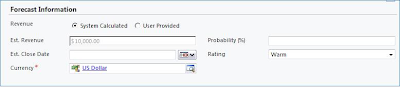
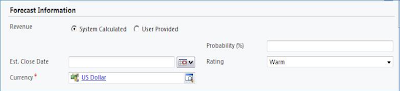
Simple script to hide the field would display the form as shown below.


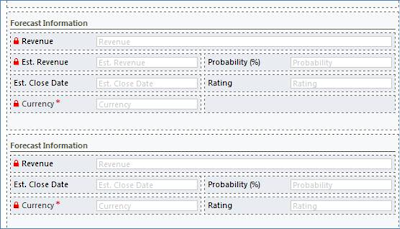
To make sure that such empty spaces are not visible on the form, you can instead create 2 sections on the form, one with the Est. Revenue field and the other without the field.


Through script you can then show/hide the entire section. This way the form layout is not affected.


Friday, January 6, 2012

Read Form Id or Form XML of a specified entity form

CRM 2011 now allows multiple forms to be designed for an entity and based on the security roles display the appropriate form.

During the development we once came across the need to get the Formid for each of the forms created for an entity. We did not want to hard code the formid in the ribbon button as the id’s may change between test and production environments.

We can programmatically retrieve the FormId of an entity through Jscript.

The schema name for the entity that stores the information about the various forms is SystemForm. The code below retrieves the id for the specified form based on the form name.


function RetrieveGetFormIDRecord(formName)
{
var cols="";
try
{
var xml = "<soapenv:Envelope xmlns:soapenv='http://schemas.xmlsoap.org/soap/envelope/'>"+
" <soapenv:Body>"+
" <RetrieveMultiple xmlns='http://schemas.microsoft.com/xrm/2011/Contracts/Services' xmlns:i='http://www.w3.org/2001/XMLSchema-instance'>"+
" <query i:type='a:QueryExpression' xmlns:a='http://schemas.microsoft.com/xrm/2011/Contracts'>"+
" <a:ColumnSet>"+
" <a:AllColumns>false</a:AllColumns>"+
" <a:Columns xmlns:b='http://schemas.microsoft.com/2003/10/Serialization/Arrays'>"+
" <b:string>formid</b:string>"+
" </a:Columns>"+
" </a:ColumnSet>"+
" <a:Criteria>"+
" <a:Conditions>"+
" <a:ConditionExpression>"+
" <a:AttributeName>name</a:AttributeName>"+
" <a:Operator>Equal</a:Operator>"+
" <a:Values xmlns:b='http://schemas.microsoft.com/2003/10/Serialization/Arrays'>"+
" <b:anyType i:type='c:string' xmlns:c='http://www.w3.org/2001/XMLSchema'>"+formName+"</b:anyType>"+
" </a:Values>"+
" </a:ConditionExpression>"+
" </a:Conditions>"+
" <a:FilterOperator>And</a:FilterOperator>"+
" <a:Filters />"+
" </a:Criteria>"+
" <a:Distinct>false</a:Distinct>"+
" <a:EntityName>systemform</a:EntityName>"+
" <a:LinkEntities />"+
" <a:Orders />"+
" <a:PageInfo>"+
" <a:Count>0</a:Count>"+
" <a:PageNumber>0</a:PageNumber>"+
" <a:PagingCookie i:nil='true' />"+
" <a:ReturnTotalRecordCount>true</a:ReturnTotalRecordCount>"+
" </a:PageInfo>"+
" <a:NoLock>false</a:NoLock>"+
" </query>"+
" </RetrieveMultiple>"+
" </soapenv:Body>"+
"</soapenv:Envelope>";


// Prepare the xmlHttpObject and send the request.
var xHReq = new ActiveXObject("Msxml2.XMLHTTP");
xHReq.Open("POST", Xrm.Page.context.getServerUrl() + "/XRMServices/2011/organization.svc/web", false);
xHReq.setRequestHeader("SOAPAction", "http://schemas.microsoft.com/xrm/2011/Contracts/Services/IOrganizationService/RetrieveMultiple");
xHReq.setRequestHeader("Content-type", "text/xml; charset=utf-8");
xHReq.setRequestHeader("Content-Length", xml.length);
xHReq.send(xml);

// Capture the result.
var resultXml = xHReq.responseXML;

var errorCount = resultXml.selectNodes('//error').length;
if (errorCount != 0)
{
var msg = resultXml.selectSingleNode('//description').nodeTypedValue;
alert(msg);
return;
}

// Parse and display the results.
var results = resultXml.getElementsByTagName('a:Entity');
//if only one zip code records found
if (results.length != 0 )
{
//alert("Lenght: "+results.length);
var attribs = results[0].getElementsByTagName('a:Attributes/a:KeyValuePairOfstringanyType');
if (attribs.length == 0)
{
alert("No data found in enitty.");
return;
}

if(attribs[0].selectSingleNode('./b:key').nodeTypedValue =="formid" )
{
//set the field values
var value= attribs[0].selectSingleNode('./b:value').nodeTypedValue;
alert("FormID:"+value);
}
}

}//end of try
catch(e)
{
alert("RetrieveGetFormIDRecordErr: "+e.description);
}
}//end of RetrieveGetFormIDRecord

</Snip>

In the above code, we just need to pass the form name and it will return the form id. In the above query we can add the condition to filter by an entity like account forms as well by setting the “objecttypecode”.

Once you have the formid you can open the form using the following url

var accountPage= Xrm.Page.context.getServerUrl()+ "/main.aspx?etn=account&extraqs=formid%3D"+value+"%0D%0A&pagetype=entityrecord";
window.open(accountPage);


Thursday, January 5, 2012

MVP Awarded!

2012 starts with a bang for Team Inogic. We take pride in announcing that one of our Team Members known to you all as Sam is now a Dynamics CRM MVP.

Well done!!!

Tuesday, December 27, 2011

Import data now allows you to Create the entities as well

CRM 4.0 made available the feature to import data into CRM using the Import feature. But this was only restricted to importing data in existing entities.


In CRM 2011 this feature has now been extended to go one step further and even create the entity in CRM to hold the data in case an entity for that does not already exist. CRM 2011 also provides us the capability to define the entity attributes as well while importing the data.

Let me explain the step one by one to give the exact understanding of the dynamic concept.

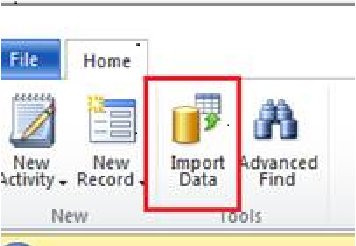
-Click on “Import Data” button


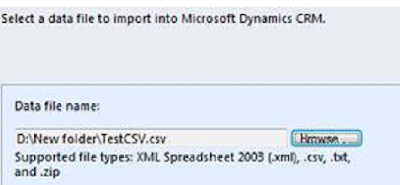
- A dialog to import your CSV data will be displayed as given in the below screen shot.

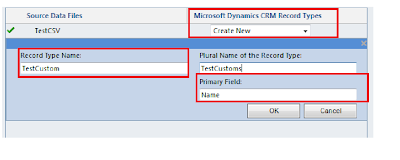
- After that Dialog to which we want to map the data will be displayed. In that window select the “Create New” as given in the below screen shot. Provide the name for the new entity along with the Primary Field name.
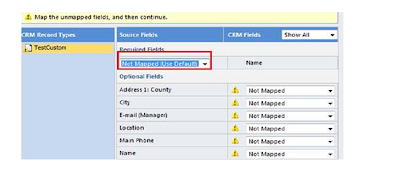
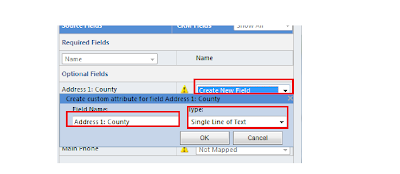
- After that a window to map the attributes to the data will be shown as given below. -For mapping of each column we can create new field as given in the below screen shot. Please make sure to provide mapping for primary field for Ex: in our case “Name”.
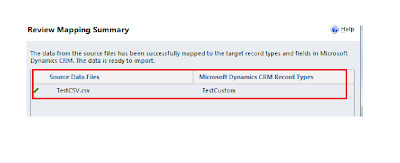
- After that a window showing the mapping summary will be displayed as given below.
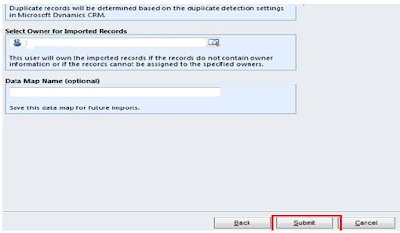
- After that click on submit button

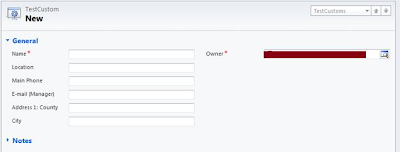
-After successfully importing the data, you will notice that the custom entity has also been created in CRM. You have to add the fields on the form as it is not implicitly added to the form


Tuesday, December 20, 2011

ODATA Properties and Methods Explored…

Here are some of the ODATA context properties that would help us during debugging and understanding the behavior of the context when performing various operations.
1. DataServiceContext.Entities:
Gets a list of all the records currently being tracked by the DataServiceContext. While using OData service, we frequently get the error that context already tracking the record. With the "Entities" property, we can check total records tracked by context. As well as after adding record to the set, we can check whether context.Entities count increases.

2. DataServiceContext.IgnoreMissingProperties:
Gets or sets whether the properties read from the type must be mapped to properties on the client-side type. Always set this property to true. This helps when say you have downloaded the ODATA reference and developed your application based on that and later there are additional attributes added to the entities. With this property set to True it will ignore the new properties that were added later on and not throw an error regarding missing properties.

3. DataServiceContext.Links:
Gets the collection of all associations or links currently being tracked by the DataServiceContext object which are added using AddRelatedObject, AddLink and SetLink methods.

4. DataServiceContext.AddLink(source, sourceProperty, target):
Adds the specified link to the set of objects the DataServiceContext is tracking. Before adding a link, both source and target must be tracked by context.
Example: context.AddLink(parentRecord, "relationshipName", childRecord);

5. DataServiceContext.SetLink(source, sourceProperty, target):
Notifies the DataServiceContext that a new link exists between the objects specified and that the link is represented by the property specified by the sourceProperty parameter. Before adding a link, both source and target must be tracked by context.
Example: context.AddLink(childRecord, "relationshipName", parentRecord);

6. DataServiceContext.AddRelatedObject(source, sourceProperty, target):
Adds a related object to the context and creates the link that defines the relationship between the two objects in a single request.
Example: context.AddLink(childRecord, "relationshipName", parentRecord);

Note: AddLink and SetLink are very useful methods as using these we can make a compound request (i.e. can add parent and child together). This will only work when your parentLink (a field that is lookup to parent) is not required on child record. When we tried to create an invoice with invoice details, it was giving an error and only invoice header gets created. This is because for Invoice detail, invoiceid is a required field and it cannot be created without and invoice id provided. However this does work in cases, where the child entity can be created independently and the parent entity is not a required attribute in the child entity.


-------------------------------------------------------
Posted by: Inogic
For more information/discussions (documents, sample code snippets, detailed work flow or diagrams),
Please be free to visit the following links or email us:
Web: http://www.inogic.com
Blog: http://inogic.blogspot.com
Email: news@inogic.com
-----------------------------------------------------

Friday, December 16, 2011

Performing CRUD Operations synchronously in CRM 2011 through JSON

Synchronous methods to create, update and delete the records for the Account entity through JSON. These methods works synchronously.

Create Records: To create the record into the CRM, you need to create an object for that record. After that you need to create the object of the XMLHttpRequest and open this request through “POST” method and need to call the send method with this jsonEntity (create from the target record).

function createRecord( ) {
var account = new Object( );
account.Name = "Create Sample";
account.Telephone1 = "555-0123";
account.AccountNumber = "ABCDEFGHIJ";
account.EMailAddress1 = "someone1@example.com";

var jsonEntity = window.JSON.stringify(account);
var createRecordReq = new XMLHttpRequest( );
var ODataPath = Xrm.Page.context.getServerUrl( ) + "/XRMServices/2011/OrganizationData.svc";
createRecordReq.open('POST', ODataPath + "/" + "AccountSet", false);
createRecordReq.setRequestHeader("Accept", "application/json");
createRecordReq.setRequestHeader("Content-Type", "application/json; charset=utf-8");
createRecordReq.send(jsonEntity);

var newRecord = JSON.parse(createRecordReq.responseText).d;
//Alert the Id of the created record
alert("Id is: " + newRecord.AccountId);
}

Update Record: Update record request is same as the create but for the Update we need to set the Additional request header for the Method in the XMLHttpRequest. Here we have added the “MERGE” method. As shown below.
updateRecordReq.setRequestHeader("X-HTTP-Method", "MERGE");

And when we open the request, we need to pass the guid of the record. As given in the below script.

function updateRecord( ) {
var account = Object( );
account.Name = "Update Name of this Account";
var jsonEntity = window.JSON.stringify(account);
var updateRecordReq = new XMLHttpRequest( );
var ODataPath = Xrm.Page.context.getServerUrl( ) + "/XRMServices/2011/OrganizationData.svc";
updateRecordReq.open('POST', ODataPath + "/" + "AccountSet" + "(guid'" + "E72B45B9-58E0-E011-B700-00155D005515" + "')", false);
updateRecordReq.setRequestHeader("Accept", "application/json");
updateRecordReq.setRequestHeader("Content-Type", "application/json; charset=utf-8");
updateRecordReq.setRequestHeader("X-HTTP-Method", "MERGE");
updateRecordReq.send(jsonEntity);

}

Delete Record: This is same as update request but here we need to call the Method delete and call send method with the null parameter.

function deleteRecord( ) {
var deleteRecordReq = new XMLHttpRequest( );
var ODataPath = Xrm.Page.context.getServerUrl( ) + "/XRMServices/2011/OrganizationData.svc";
deleteRecordReq.open('POST', ODataPath + "/" + "AccountSet" + "(guid'" + "E72B45B9-58E0-E011-B700-00155D005515" + "')", false);

deleteRecordReq.setRequestHeader("Accept", "application/json");
deleteRecordReq.setRequestHeader("Content-Type", "application/json; charset=utf-8");
deleteRecordReq.setRequestHeader("X-HTTP-Method", "DELETE");
deleteRecordReq.send(null);

}


-------------------------------------------------------
Posted by: Inogic
For more information/discussions (documents, sample code snippets, detailed work flow or diagrams),
Please be free to visit the following links or email us:
Web: http://www.inogic.com
Blog: http://inogic.blogspot.com
Email: news@inogic.com
-----------------------------------------------------

Tuesday, December 13, 2011

Read records synchronously using JSON in CRM 2011

Common knowledge is that we can make JSON requests through scripts in CRM 2011 to retrieve data from CRM entities. However, the JSON request works asynchronously i.e it does not return the results immediately and the control moves to the next line of code to be executed.

It so happened during one of our development sessions is that we had to write a script to populate the values of some attributes on a form based on the value entered in another form, similar to the usual copy the phone and email once the contact is selected. We had written the JSON code for this but because it executed asynchronously the control would return to the user even before the code execution completed and the phone and email was populated on the form. The user would click on Save and Close and reported an issue that it did not bring over the phone and email…

We can replace JSON with SOAP and get this done. But we thought of getting this done by executing JSON request synchronously now that we already has the code in there to execute the call through JSON.
function retrieveRecordsSynchronously() {

var retrieveRecordsReq = new XMLHttpRequest();
var ODataPath = Xrm.Page.context.getServerUrl() + "/XRMServices/2011/OrganizationData.svc/AccountSet";
retrieveRecordsReq.open('GET', ODataPath, false);
retrieveRecordsReq.setRequestHeader("Accept", "application/json");
retrieveRecordsReq.setRequestHeader("Content-Type", "application/json; charset=utf-8");
retrieveRecordsReq.send(null);
var records = JSON.parse(retrieveRecordsReq.responseText).d;
//Read the first account name
alert('First Account Name is: ' + records.results[0].Name);
}
As given in the above code we need to create the object of the XMLHttpRequest and need to open this request through ‘GET’ method. And after setting the header of this request we need to just call the send Method to send the request, after that we need to parse the response text of the request and from that we can read the results.

We are reading from AccountSet and it returns an array of accounts. Note it would only return 50 results at a time.

Thursday, November 24, 2011

Where are the List Members of a Dynamic Marketing List?

In CRM 4.0 there was no concept of Dynamic Marketing List. We could create only static Marketing lists until CRM 2011. Now in CRM 2011 Microsoft has introduced the concept of Dynamic Marketing list. In Dynamic Marketing List the Marketing List Members are selected based on the critieria that is set for the Marketing lists. This means that each time you open a Marketing list the criteria is evaluated against the current database records and the list of members displayed at runtime based on the results of the query specified.

Recently we were required to read the Members of a Marketing list and while we could get the list of members for the Static Marketing list from the ListMember entitiy of Dynamics CRM. But when you try to look for List Members for a Dynamic List you wont find any results in there. Thats because as stated earlier, the members are added based on the evaluation of the query at runtime.

In case of Dynamic marketing list when we retrieve the Dynamic Marketing List we will get the FetchXML in the “query” field that contains the Fetch XML Query.

In the below given code we have read the Dynamic Marketing List. The query for the Marketing List members is stored as a FetchXML request in the “query” field of the Marketing List entity. For Static marketing List the query attribute would return null value.

We have to execute the query using the FetchExpression as given in the below code.

private void RetrieveMarketingListResult(IAsyncResult result)
{
try
{
//OrganizationResponse Response = ((IOrganizationService)result.AsyncState).EndExecute(result);
//Entity listResponse = (Entity)Response["Entity"];

string fetchXMLQuery = string.Empty;
OrganizationResponse response = ((IOrganizationService)result.AsyncState).EndExecute(result);
EntityCollection results = (EntityCollection)response["EntityCollection"];
StringBuilder sb = new StringBuilder();
foreach (Entity entity in results.Entities)
{

fetchXMLQuery = entity.GetAttributeValue("query");
sb.AppendLine("List Name = " + entity.GetAttributeValue("listname"));
}

FetchExpression query = new FetchExpression()
{
Query=fetchXMLQuery
};

OrganizationRequest request = new OrganizationRequest() { RequestName = "RetrieveMultiple" };

request["Query"] = query;

IOrganizationService service = SilverlightUtility.GetSoapService();

service.BeginExecute(request, new AsyncCallback(RetrieveViesResult), service);

}
catch (Exception ex)
{
this.ReportError(ex);
}
}

After executing the query we would get the collection.

NOTE: There are chances that the results of the FetchXML execution may not match what is actually displayed in CRM UI for a Dynamic Marketing List. One of the reasons is when adding marketing list members CRM only allows active records to be added as members. In case the FetchXML does not explicitly include the criteria for Active records selection the result would return active as well as inactive records. You will need to manually exclude the Inactive records from your execution process.

Friday, November 18, 2011

CRM 2011 Developer ToolKit

As mentioned in earlier blog Microsoft Dynamics CRM developers can now write custom code from within Visual Studio by using tools and can automatically deploy that code to the CRM from within the visual studio itself. In this part we walk through the development and deployment of Workflow and Web Resources

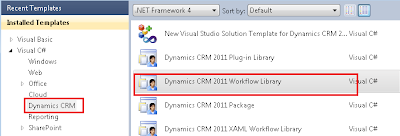
- Open Visual studio 2010. New Dynamic CRM template will be installed as given in the below screen shot.
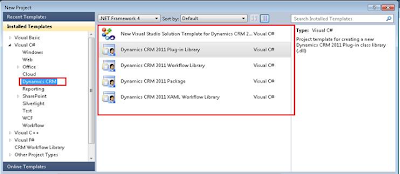


The Toolkit supports the create, update, delete and deployment of Workflows (both XAML and custom workflow activities), Silverlight applications and other Web resources including Jscript and HTML.

Create and Deploy a Workflow Library:
Use the following procedure to create and deploy a workflow library:
1. Select the Dynamic CRM 2011 Workflow Library project as given in the below screen shot


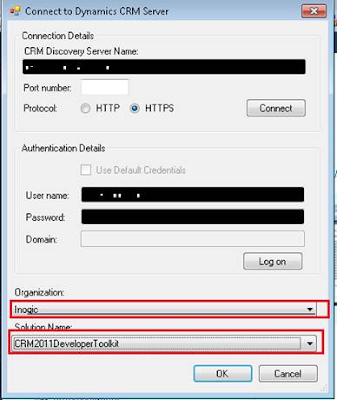
2. User will be prompted for the following information. Specify the login information as well as Organization and the solution where you would like to deploy your components.


3. In the workflow project, right-click the workflow project node and select Add and then select New Item.
4. In Add New Item – Workflow dialog box, in the Dynamics CRM group of installed templates select the Workflow Activity Class template as given in the below screen shot.


Enter the Name of the class you would like to be generated, and then click Add.
5. In the Custom Workflow dialog box specify field values for your workflow activity according to the descriptions in the following table.
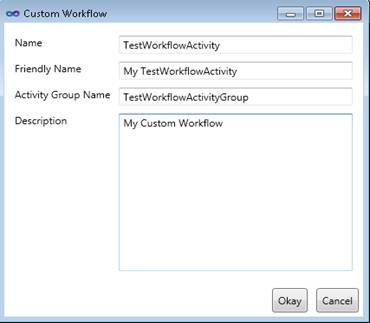


6. Open the generated class and add your custom workflow business logic where indicated by the comment // TODO: Implement your custom Workflow business logic.. as given in the below screen shot.
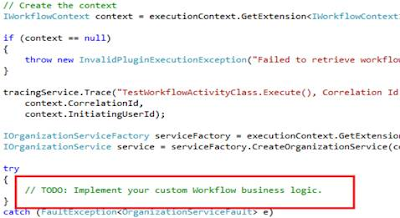


This action also updates the RegisterFile.crmregister in the CRM Package project to store the Workflow registration information as given in the below screen shot.



7. In the Properties of the workflow project, on the Signing tab, check the Sign the assembly check box and set the strong name key file of your choice.
At a minimum, you must specify a new key file name and do not protect your key file that uses a password.
8. Right-click the CRMPackage project and select Deploy as given below.
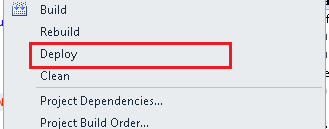


This builds the dependent projects and deploys the workflow activity to the Microsoft Dynamics CRM server. Any subsequent changes to the workflow activity are reflected to the server during the build and deploy process.
9.Right- The Workflow activity that we have created gets added to the solution as given in the below screen shot.
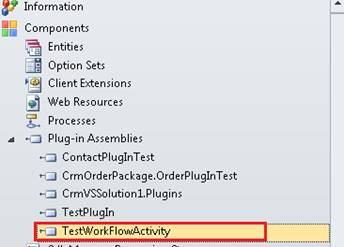


4) New Visual Studio Solution Template for Dynamics CRM 2011:
When you use the New Visual Studio Solution Template for Dynamics CRM 2011 project template option to create a new solution, a Silverlight application project is created.
The Developer Toolkit allows for the inclusion of multiple Silverlight application projects. The procedure to add a new Silverlight web resource consists of either adding a new or Silverlight application project or an existing Silverlight XAP file.

To Create and Deploy a New Silverlight Web Resource

1. In the Visual Studio solution explorer, right-click the solution and select Add and then select New Project.
2. In the Add New Project dialog box, select the Silverlight Application template, specify a name for the project and then click OK.
3. In the New Silverlight Application dialog box, clear the Host Silverlight application in a new Web site check box, and then click OK.
4. In the CrmPackage project right-click References and select Add Reference.
5. In the Add Reference dialog box, select the Projects tab and select the Silverlight application project you created. Click Add to add it to the Selected projects and components list and then click OK.
6. Right-click the new reference you added in the previous step and select Properties.
7. Specify the Description, Display Name, and Unique Name properties you want to use when you create the Silverlight web resource as given in the below screen shot
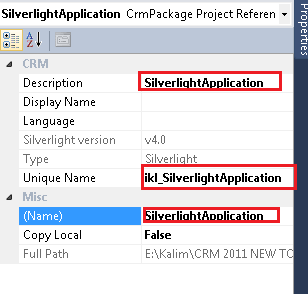


8. When you are ready to deploy your Silverlight web resource, right-click the CrmPackage project and select Deploy from the context menu.
9 The Silverlight Project that we have created gets deployed to the solution as a .XAP file as given in the below screen shot.
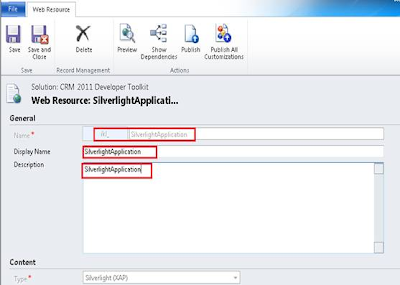


To Add and Deploy an Existing Silverlight Web Resource

1. In the CRMPackage project, right-click the WebResources folder, and then click Add Existing Item.
2. In the Add Existing Item – CrmPackage dialog box, select the XAP file of the Silverlight applications that you want to add.
3. In the WebResources folder, right-click the Silverlight application, and then click Properties.
4. In the Properties, specify the Microsoft Dynamics CRM metadata attributes. This includes the Description, Display Name, Silverlight version, and Unique Name, that you want to use when you create the Silverlight Web Resource.
5. To deploy the Silverlight web resource, right-click the CrmPackage project and select Deploy from the shortcut menu.

To Add an Existing Silverlight Web Resource to the Project

1. In the CRM Explorer, expand the Web Resources folder and the Silverlight (XAP) to select the Silverlight web resource.
2. Right-click the Silverlight web resource and select Add to Packaging Project from the shortcut menu.

Working with Other Web Resources

Note : The web resource types other than Silverlight web resources are added to the CrmPackage project.

1. In the CRMPackage project, right-click the WebResources folder and in the shortcut menu select Add and then New Item.
2. In the Add New Item – CrmPackage dialog box select one of the following file templates:

• HTML Page
• Icon File
• JScript File
• Style Sheet
• XML File
• XSLT File

3. In my case I have added HTML page and Script file. As soon as I completed with adding of these files, these files will be displayed in the CRM package as given in the below screen shot.
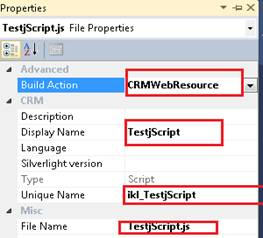
4. In the Properties, specify the Build Action to “CRMWebResource” to create web resource on build of the solution. Specify as Description, Display Name, and Unique Name properties you want to use when you create the web resource as given in the below screen shot.


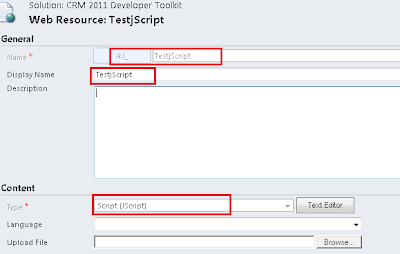
5. After adding these web Resource components all will be deployed in the solution as given in the below screen shot
Monday, November 14, 2011

CRM 2011 Developer ToolKit

Recently Microsoft has developed Developer Toolkit for Microsoft Dynamics CRM 2011 that is integrated with Visual Studio to accelerate the development of custom code for Microsoft Dynamics CRM 2011 solutions. Microsoft Dynamics CRM developers can now write custom code from within Visual Studio by using tools and can automatically deploy that code to the CRM from within the visual studio itself.

The Developer toolkit for Microsoft Dynamics CRM 2011 can be downloaded from the Link http://www.microsoft.com/download/en/details.aspx?id=24004

Supporting operating systems are windows7,Windows server 2008.

- After downloading the exe run the crmdevelopertools_installer.msi.
- After successful installation open Visual studio 2010. New Dynamic CRM template will be installed as given in the below screen shot.


The benefits of Developer Toolkit are listed below.

- The Toolkit supports the create, update, delete and deployment of CRM Plug-ins, Workflows (both XAML and custom workflow activities), Silverlight applications and other Web resources including Jscript and HTML.
- Easily generate strongly typed proxy classes without having to run CrmSvcUtil.exe.
- Works with Dynamics CRM Online, On-premise and IFD deployments.

Let me discuss the components one by one

1) Dynamic CRM 2011 Package:1.1) In your new solution, the CrmPackage project is a manifest project that contains all components to be deployed to Microsoft Dynamics CRM combined with their deployment settings. By default, the outputs from each other project are added as references to this project in so that they can be deployed to the server.

So CRMPackage project is required if you want to deploy any component on the CRM server.


1.2) Components are added to the package by adding projects as a reference or by adding components under the WebResources folder.
1.3) The RegisterFile.crmregister contains registration information for plug-ins and custom workflows created by the toolkit. This information is used to register these components during deployment.

2) Plug-in Project:

The Plugins project contains a base class named Plug-in that implements the Microsoft.Xrm.Sdk.IPlugin interface. All plug-in classes generated through the Create Plug-in option of the CRM Explorer will derive from this class. This class simplifies some of the common code that is required by many plug-ins, including the following:

• Obtaining execution context from the service provider.
• Obtaining the tracing service from the service provider.
• Instantiating the Organization Service proxy.

Additionally, the validation method verifies several typical plug-in events and provides a pattern for the developer to extend.

Initially, the derived class’ implementation calls the base class’ implementation before continuing with its own, more specific implementation.

After validating that the plug-in should execute, the base class calls up to the Execute method of the derived class, passing through the execution context and Organization Service proxy.

Use the following procedure to create and deploy a plug-in.

1. Select the Project as given in the below screen shot.


2. User will be prompted for the following information. Specify the login information as well as Organization and the solution where you would like to deploy your components.


3. CRM Explorer is displayed in the visual studio where all the components of the organization specified will be displayed as given in the below screen shot.


locate the entity that you want to create the plug-in for. Right-click the entity and then select Create Plug-in as given in the below screen shot.

User will be prompted for the information’s as given in the below screen shot where we have to give information regarding the events and entity name on which we have to register the Plug-in as given in the below screen shot.


• If the current project already has an existing plug-in assembly registered, you can also use the Add Plug-in shortcut menu option on the existing plug-in assembly and then select the entity you want it to apply to.

4. In the Create Plug-in dialog box, click OK to generate the plug-in code. This action also updates the RegisterFile.crmregister in the CRM Package project to store the plug-in registration information as given in the below screen shot.


5. Open the class that is generated and locate this comment // TODO: Implement your custom Plug-in business logic. Add your custom plug-in business logic to that method.

6. In the Properties of the plug-in project, on the Signing tab, select the Sign the assembly check box and set the strong name key file of your choice.

Deploying your solution

7. Right-click the CRM Package project and select Deploy as given in the below screen shot.


This builds the dependent projects and deploys the plug-in to the Microsoft Dynamics CRM server. any changes to the plug-in are reflected to the server during the build and deploy process.

8) The steps that we have added to the Plug-in gets added to the solution as given in the below screen shot. The Plug-in assembly on which you are currently working displayed in the Green colour.


9) When you click on the any component it will be opened from within the crm Explorer without having need it to open explicitly from browser as given in the below screen shot.

Double click on the entity and it will be opened in your solution itself in separate Tab as given in the below screen shot.


To Add a Step to a Plugin
1. Right-click a plug-in that is part of a plug-in assembly that is included in the current solution and select Add Step.
2. In the Create Plug-in dialog box, configure your step as given in the below screen shot.


Now CRM development made a lot easier.