This opens a HTML web resource page.
Inogic is a hub of like minded professionals who believe in innovativeness and are committed to putting our time and efforts to R & D on Dynamics CRM.We endeavor to share some of our work on this blog by introducing Tips, Tricks and products from our labs.
Friday, July 20, 2012
Outlook Authentication issue fixed in Rollup 8
This opens a HTML web resource page.
Tuesday, July 17, 2012
Quick Tip - Allow Lookup fields to search by multiple attributes
This search is performed on all fields that is listed in the Find columns in the Quick Find View of the entity.
Instead of clicking the lookup button, the same search can be performed by directly typing in the search string in the lookup field.
The Lookup field is designed to auto-resolve the text to a matching record in the lookup entity.
This little known feature is very helpful in cases, where you identify the records not by thier names but by a unique id. Take for example you have a form in CRM that you need a user to fill in, and the user is aware of the SSN # of the contact and it would be a time saver if the user could type in the SSN# in the Contact lookup and it would auto-resolve to the Contact.
To acheive this follow the steps below
1. Customize the Contact entity
2. In Views, Select Quick Find View
3. Click on the Add Find Columns
4. Check the SSN field
5. Save and publish the entity.
Open the Account form. In the Primary contact type in the SSN# and tab out...
It will auto resolve to the contact that has that SSN# assigned.
Hope this little trick saves a lot of data entry time!
Monday, July 9, 2012
R8 aka Q2 2012 Service Update Plans revised
However in the recent Press Release posted on 6th July, Cross Browser availability and Mobility plans have been delayed and these would not be included in the Q2 update. Here is what it says
On July 19th, as we committed, our Q2 release will include Microsoft SQL Server 2012 support, Industry templates and certifications for our online service. After listening to the feedback from our customers and partners we are delaying availability of Microsoft Dynamics CRM Mobile and cross-browser support. These were previously scheduled to be delivered in the Q2 2012 Service Update, and we now plan to deliver them in the service update scheduled for Q4 2012
You can read the entire post here
This was one of the features that I was most excited about and I am little disappointed with the delay... Q4,,, a bit too long a wait :( Nonetheless it is always better to have a great finished product than half-baked one and as long as this feature is made available in the future with no scope for issues/errors.... I would be willing to wait...
Waiting for a great Cross-Browser Release!!!
Tuesday, June 19, 2012
CRM 2011 Install Errors - Tips and Tricks continued
A Microsoft Dynamics CRM Server component is using the same account as the instance of SQL Server Reporting Services
You receive the above error when installing SSRS Data connector. I had never seen this before. But this was a system on which there was a previous install of CRM 2011 Async service (A distributed install). The Reporting Service was running under Network Service Account. Changing it to another domain user account did not fix this issue.
This issue has been explained in detail in this KB article http://support.microsoft.com/kb/974584. Though this KB has been targetted for CRM 4, the following section of the resolution worked in this particular case
Add the IgnoreChecks registry key to the computer that is running Microsoft Dynamics CRM so the installation can proceed when an error is shown in the Environmental Diagnostic Wizard (EDW):
- Click Start, click Run, type regedit, and then click OK.
- In the registry, locate the following subkey: HKEY_LOCAL_MACHINE\SOFTWARE\Microsoft\MSCRM
- Right-click MSCRM, point to New, click DWORD Value, and then type IgnoreChecks.
- Double-click IgnoreChecks, and then type 1 in the Value data field.
After successful installation remove the key added to the registry.
Index was outside the bounds of the array.
I came across this while trying to fix the one above :) The one above complained about same service account being used, so I tried to fix it by using a Domain user account. Instead of typing the user name, I chose to use the lookup button to seach the user from the AD. Selecting the user set the service user name in the form of user@domain.com.
Change the service account back to domain\user and this error will vanish.
Action Microsoft.Crm.Setup.Server.GrantConfigDBDatabaseAction failed.
Windows NT user or group 'NTDomain\SQLAccessGroup{xxx} not found.
If you see this error during an install or upgrade and if you are using SQL Server on another machine, you are connected to the SQL Server machine through an RDP session. Log off. Restart the install and it will proceed without any error :)
The transaction log for database 'ORG_MSCRM' is full due to 'ACTIVE_TRANSACTION'.
Do not try to check the transaction log size for this. Most probably all is good there. The first thing to check is free disk space on the drive on which the ORG_MSCRM database and log file resides. You are probably running out of space there. Make some space and you are ready to go. Check this
Installation of Microsoft Visual C++ Runtime failed. Exit code: 5100. Result: Asia
Setup will not run on a machine that has Visual C++ 2010 with version 10.0.40219 install. This system had SQL 2012 installed that probably installed this higher version. CRM Setup requires an older version to continue. Go ahead and uninstall the VC++ redistributable on this machine and let CRM install the required components including Visual C++
As usual, the above solutions have worked in our scenario and you can give them a try at your own risk
Monday, June 11, 2012
How to Debug Plugins using Profiler
Saturday, May 26, 2012
Solutions to issues with Reports in Dynamics CRM 2011
Wednesday, May 16, 2012
Reports Not Working After Upgrade to CRM 2011
When you install CRM with the SQL server being separate from the CRM server, the setup does not automatically prompt you to install Reporting Services Extensions. You need to manually copy the SrsDataConnector folder found in the CRM install directory to your SQL server. Run SetupSRSDataConnector.exe from there. This will prompt you to select the SQL server and the Reporting Server instance and go ahead and install all the reports for you.
In my case this was already done and yet the Sub-Reports did not work. The main reports would work but the moment we clicked on Show More Details that would require the sub-report to be executed, it would throw an error "Details could not be displayed as the sub-report could not be found". The Event viewer recorded the following error
Report render failure. Error: The item '/SharedReports/5.0.xxxx/{6177ee54-f42e-e011-a793-001ec9bbc670}' cannot be found. (rsItemNotFound)
Checking the Report Server using http://server/Reports showed that though the sub-report was present in that folder it had a different Guid than the one shown in the event viewer.
Since this was an upgrade, I thought it might still be using CRM 4 Guids and publishing the reports again would probably fix the issue. I found "PublishReports.exe" in the tools folder of CRM Installation directory.
Executed that exe from command prompt using publishreports.exe uniqueorgname
It showed that it published some reports but that did not resolve my problem :(
I then came across this post that helped me reset the setting in MSCRM_Config database .
There is a setting in MSCRM_Config --> Organization table "AreReportsPublished". You need to set the value of this attribute to 0/False. This will be get the PublishReports to publish the reports once again.
After making this change, executing the PublishReports.exe tool helped in get my reports working again!
No matter how many upgrades you work on.... each one is a different case :)
Sunday, May 13, 2012
UR8 released and UR9 "Beta" now available!
You can download UR8 from http://support.microsoft.com/kb/2600644
Within a few weeks from the release of UR8, UR9 has been made available for public beta. You can check Girish Raja article for more details on how to subscribe to the beta. Go get your beta copy right now!
Tuesday, March 27, 2012
Read Optimized Form made available through UR7

Note if you uncheck the Allow users to select a mode for viewing forms, you can force the users to follow the organization level setting enforced by the administrator. The above option will then not be available on individual user settings form.
The individual user settings always take preference over Organization settings.
So what is a Read-Optimized form?
This form will display the record in read-only mode this means that user will not be able to edit the details on the form. The idea behind this being, most often users access existing records for viewing the details rather than editing them.
The benefit of RO form is that it loads much faster than an Edit form. It is much like the Print Preview Option that was always present in CRM. When you did a print preview it would show up a window with all the details laid out just as it is on the form.
The trade-off however has been that it would now not include or support the following
1. Left navigation links missing
2. Ribbon Missing
3. Web Resources cannot be included on the form, if included the form will not open in RO even if user preference is set to RO form for viewing.
4. If you have scripts included on the Onload event then again the forms would not open in RO view until the scripts are removed from the onload event handler.
Here is what the url now looks for Read Optimized Form. A new flag &rof has been provided that lets you provide the RO setting. True would open the form in RO view if it is possible i.e it does not include scripts or web resources that prevent the form from opening in RO view.
http://crm5:5555/orgname/main.aspx?etn=account&pagetype=entityrecord&id=%7b78D41C71-C62F-E111-974F-00155D000F03%7d&rof=true
The above link would open the account form in RO mode even if the users individual setting was set to Edit mode.
If the &rof flag is not included in the URL then it will open based on the default View settings for the user.
What if you would want to check the activities that were earlier available in left nav links on the form? Add them as a sub-grid on your form and the RO view would list them out
You can open the activities to view the details and then these would also open in RO mode. But you are not allowed to create new activities. The buttons are missing.
If you notice the notes pane, it lists the notes but you cannot download the attachments or add new notes.
If you had Webresources that you wanted to include on the form even in RO mode? You include that instead as an IFRAME. In the example below... we have picked up the web resource URL and copied that in the IFRAME.
The URL to the Webresource should include the Organization name if you are providing relative url.
/orgname/WebResources/new_/Maps.html
You can design multiple role based forms in CRM and the Read-Optimized mode will apply to all of the forms defined. If a user has access to more than one forms, just like before it would by default open the last viewed form by the user in RO view.
There might be probably more that comes up once we start looking into this deeper and we will make sure to come back and update this based on the new understanding of the RO concept...
Friday, March 23, 2012
IFD Configuration
- HTTP 503 Service Unavailable error.
- HTTP 404 Not Found error.
When "FederationMetadata/2007-06/FederationMetadata.xml" is requested through the browser CRM website, it has the rule that rewrites the URL to handlers/Federation Metadata.ashx. So when one gets such types of error then it means IIS URL Rewrite module is not rewriting the URL correctly.
The solution for this issue is to re install the IIS URL Rewrite.
If the reinstallation of IIS URL Rewrite does not resolve the issue. The Issue could be due to Reserved URL. To find the Reserved URL follow the below given steps.
a) Open Command Prompt.
b) Type the Command NETSH HTTP SHOW URLACL.
c) This command will show all the reserved URL's.
d) If you get any reserved URL with error as given below.
Reserved URL : https://ABC:443/
Can't lookup sid, Error: 1332
SDDL: D:(A;;GA;;;S-1-5-80-2246541699-21809830-3603976364-117610243- 975697593)
e) Then we have to delete each URL for which we get such type of error as given above using the below command. Please provide the full URL for which you get the error in the command Prompt.
netsh http delete urlacl url=https://ABC:443/
f) After that again run the command to check if the reserved URL is still having an error message through command NETSH HTTP SHOW URLACL.
g) Repeat the step (e) for each URL for which you are getting the error.
h) After deleting all the Reserved URL through the Command,do IIS RESET on CRM server.
i) Configure CLAIMS again using Deployment Manager on CRM 2011.
j) Now try to access the federation Url “FederationMetadata/2007-06/FederationMetadata.xml"again.
We have refereed the blog http://blogs.msdn.com/b/emeadcrmsupport/archive/2011/05/13/we-receive-http-errors-while-accessing-the-crm-federationmetadata-url.aspx to resolve the issue.
The above listed steps should resolve the issue.
Tuesday, March 13, 2012
N:N association
For achieving this we have special Message made for Campaign called AddItemCampaignRequest.
Below we have provided the code that will associate the Campaign with Campaign Items.
//Add Item to Campaign
AddItemCampaignRequest req = new AddItemCampaignRequest();
// Specify the Campaign Id
req.CampaignId = new Guid(CampaignId)
// Specify the Logical name of the entity to which we want the Campaign to be associated
req.EntityName = entity.LogicalName;
// Specify the Id of the entity to which we want Campaign to be associated
req.EntityId = new Guid(EntityId)
// Execute the request
AddItemCampaignResponse resp = (AddItemCampaignResponse)_service.Execute(req);
We can associate Campaign, Marketing List, Product, or Salesliterature with the Campaign through the AddItemCampaignRequest message.
To use this message, pass an instance of the AddItemCampaignRequest class as the request parameter in the Execute method. To perform this action, the caller must have access rights on the campaign entity instance.
Same we can associate the Campaign Activities with the Marketing Lists through the AddItemCampaignActivityRequest as given in the below code.
// Create the request object.
AddItemCampaignActivityRequest add = new AddItemCampaignActivityRequest();
// Set the properties of the request object.
add.CampaignActivityId = new Guid(CampaignActivityId);
// Specify the List Id to which we want Campaign Activity to be associated
add.ItemId = new Guid(listId);
// Specify the Logical name of the entity to which we want the Campaign Activity to be associated
add.EntityName = EntityName.list;
// Execute the request.
AddItemCampaignActivityResponse added = (AddItemCampaignActivityResponse) service.Execute(add);
The Marketing List being added must have already been added to the campaign otherwise error will be thrown and Marketing List will not be associated with Campaign Activities.
Hope this helps!!!
Monday, March 5, 2012
Experiences from the MVP Summit!
Well, this was one travel that I had not planned for. But today I am happy that I did not skip it. This was my first MVP summit after being awarded MVP in January this year and it was an enriching experience.
I was one of the 41 CRM MVPeeps that were present at the summit and I was the only one from India in the CRM Group. The group had representation from most parts of the world and it was great to see the reach and adoption of CRM across the world.
There were many sessions revolving in and around CRM and unfortunately not much can be shared here to due to the NDA. All that can be said though is CRM is heading the right direction and we are in safe hands :)
It was a pleasure to hear the product team speak about the future of the product and thier vision for the product. It was good to know we could share our concerns and they would be addressed and that we were not just there to hear them talk but the product team was listening to us as well and that as MVP we were really a valuable community for them.
Amy did a really great job at organizing the sessions and many thanks to her to make sure we are all well looked after :)
Besides the sessions which were by the way not all work but actually a lot of fun, there were also other parties organized in the evenings. The closing ceremony was held at Centurylink fields. There was a fireworks show and we had a chance at the ball on the fields.
A very big thanks to all MVP's to make us first timers feel welcome. Looking forward to Convergence that starts 18th March and I expect that to be an equally enriching experience and I really look forward to meeting all my friends back again!
Tuesday, February 28, 2012
Issue with plug-in in CRM 2011
The plug-in was working fine for single record. But when two records are saved simultaneously, the plug-in was giving below errors randomly.
1. "ValidateOpen - Encountered disposed CrmDbConnection when it should not be disposed"
2. "You cannot create a SqlExecutionContext from another SqlExecutionContext on which OnBeginRequest has not been called"
3. " System.InvalidOperationException: Microsoft Dynamics CRM has experienced an error. Reference number for administrators or support: #58919D7E"
4. "System.NullReferenceException: Microsoft Dynamics CRM has experienced an error. Reference number for administrators or support: #1638FFA8"
When we checked in the Event viewer then we got that whatever error we get from CRM the Event viewer shows "System.InvalidOperationException: There is already an open DataReader associated with this Command which must be closed first." error.
After searching on net we found that CRM does not re-initialize the plug-in object again, it uses the same object. In the plug-in, ignore to use class level variables. We had created service object at class level so it was using the same service object for retrieving and updating.
Also we were reading post image and updating the post image as it is. This was also creating a problem. Please create a new object of Entity and then set only those fields which you want to update. Then update the record.
Sometimes this plug-in takes too much time as it was doing so many calculation. We were getting the "Query execution time of 30.1 seconds exceeded the threshold of 10 seconds. Thread: 4; Database: inogic_MSCRM " error when plug-in takes time. To resolve this, please add below keys in the registry on CRM server.
1) HKEY_LOCAL_MACHINE\SOFTWARE\Microsoft\MSCRM\OLEDBTimeout
a. In seconds
b. The OLEDBTimeout value controls the SQL time-out value that is used for a single SQL query
c. Set it to 60 seconds
2) HKEY_LOCAL_MACHINE\SOFTWARE\Microsoft\MSCRM\ExtendedTimeout
a. In milliseconds
b. The ExtendedTimeout value controls the ASP.NET time-out value
c. Set it to 1,000,000
3) HKEY_LOCAL_MACHINE\SOFTWARE\Microsoft\MSCRM\NormalTimeout
a. In milliseconds
b. Specifies the SOAP call timeout for most operations
c. Set it to 300,000
Wednesday, February 22, 2012
How to debug XAML bindings in Silverlight 5
Prerequisites:
Silverlight 5 toolkit
Silverlight 5 Developer Runtime
Visual Studio 2010 SP1
The example demonstrated here implements basic XAML data binding. Below we have specified both the scenario when binding is correct and incorrect.
In below example we have given a simple binding for DataGrid.
When Binding is Correct:

Now you can apply a breakpoint to the binding syntax. Once the break point is applied, it hits the breakpoint whenever push and pull is triggered for that control. The below image shows the breakpoint applied within XAML
The XAML editor will not allow you to set breakpoint anywhere else other than Binding syntax.
Once Breakpoint is set, start debugging and wait for the compiler to hit the breakpoint.
You can find the debug information from Local tab.
The information shows up a BindingState object holding complete binding context information of the control. As in the above image, the BindingState value is UpdatingTarget so this way it shows that the binding is pushing data to control.
Going through the debugging information, it shows the complete picture on the nature of data and binding
Now another thing to know is, on TwoWay binding scenario once you change the data, The breakpoint again gets a hit as the binding source is getting updated. And the debug information shows the Binding state as Updating Source status. The breakpoint again gets a hit as the binding source is getting updated. And the debug information shows the Binding state as Updating Source status.
When Binding is Incorrect:
When binding is incorrect you will get the error while debugging the binding.
This will help you to find the incorrect bindings in your XAML.
Hope this helps you to get acquainted with the new feature of Silverlight 5
Wednesday, February 8, 2012
Features to be included in the Q2 2012 service update.
Cross Browser Support
CRM had been restricted till date to be accessible through Internet Explorer only. However, with this release the user would now have the choice of browser. They can choose from IE v7+, Firefox v6+ and Chrome v13+. Safari v5.1.1+ as a browser would be supported on Apple Mac OS-X and iOS 5.x.
CRM Anywhere:
Besides giving a choice of browser, it will also provide mobile options as a part of the new cloud based mobile CRM service called Microsoft Dynamics CRM Mobile. This would however be a paid service and to begin with only be available in 24 markets (India not included) Native apps would be available for the following devices
Windows Phone v7.5+
Apple iPhone 3GS+ iOS 5+
Google Android v2.2+
RIM Blackberry v6.x +
Apple iPad/iPad2 iOS 5+
Note: The initial release of Microsoft Dynamics CRM Mobile for Windows Phone will not support offline data
Dashboard view would also be available on the mobile. Check this out…

Industry Solution Templates:
Industry templates would be made available for the following
Life Annuity Insurance Sales
Non-Profit
Health Plan Sales
Wealth Management
Custom Workflow Activities in CRM Online:
It was not possible to create custom workflow activities in CRM Online and solutions had to be re-designed around Plugins most times. It would now finally be possible to create Custom Workflow Activities in CRM Online as well.
Rapid View Forms:
It would now be possible to design Rapid View Forms that would be read-only forms. This would help the forms to be loaded quicker when the purpose of accessing the data is only to read the information and not make any edits. It would be possible to convert the read-only form to edit mode at the click of a button.
It would be possible for the user to decide if they wanted their forms to be loaded by default in the read-only mode or edit mode.
To read in detail about the features to be introduced check out the release preview guide
Sunday, February 5, 2012
Maplytics now available for CRM 2011
We are happy to announce the availability for Maplytics for CRM 2011. The new version now supports all 3 CRM deployment models On-Premise, Online as well as IFD.
Maplytics is geo-analysis tool that allows you to view your CRM data on a map as well as allow your Sales Rep on the field to plan their schedule with the aid of Maplytics.

This new release supports Street View. Street View allows you to get a road side view of the address

You can also select multiple addresses and have the tool plot the route through the addresses selected.

Ability to Print the map as well as the route directions so that it can be circulated within the team.

It can now be added as a Dashboard component in your Dashboard.
Click here for more details.
Wednesday, February 1, 2012
Pass Custom Parameters to an entity form through a URL
Let me describe the way in which we can define a set of specific parameter names and data types that can be accepted for a specific entity form.
Define Allowed Query String Parameters:
There are two ways to specify which query string parameters will be accepted by the form:
• Edit form properties
• Edit form XML
Edit Form Properties:
When you edit an entity form, on the Home tab in the Form group, click Form Properties. In the Form Properties dialog box, select the Parameters tab. Use this tab to modify the names and data types that the form allows as given in the below screen shot.

The following describes the querystringparameter element attributes, name and type:Name: Each name attribute must contain at least one underscore ('_') character, but the name of the query string parameter cannot begin with an underscore. The name also cannot start with 'crm_'. We strongly recommend that you use the customization prefix of the solution publisher as the naming convention. If you don’t follow the naming conventions the alert message as given in the below screen shot will be shown to the user.
Type: Following types of parameters can be passed to the form. Match the data type values with the parameter values so that invalid data is not passed with the parameter. The following are valid data types:
• Boolean
• DateTime
• Double
• EntityType
• Integer
• Long
• PositiveInteger
• SafeString
• UniqueId
• UnsignedInt
Let me define the parameters for the form and access them through Query string parameters.
- We have created two parameters for the Account Form as given in the below screen shot.
- We have opened the form through the below given script with parameters appended to the URL.
var extraqs = "Parameter_Source=Hello";
extraqs += "parameter_Source2=8";
//Set features for how the window will appear.
var features = "location=no,menubar=no,status=no,toolbar=no";
// Open the window.
window.open(Xrm.Page.context.getServerUrl() +"/main.aspx?etn=account&pagetype=entityrecord&extraqs=" + encodeURIComponent(extraqs), "_blank", features, false);
- After that we have checked it through the query string parameters.
// Get the Query String Parametrs passedthrough the URL
var param=context.getQueryStringParameters();
// Get the Value of the Source through the Key Parameter Name
var source=param["Parameter_Source"];
var source2=param["parameter_Source2"];
// if Source is Undefined i.e. the URL Doesn't contain the key
if (source==undefined){ return; }
else{ // Perform the operation
}
This will be helpful in the scenario suppose if are opening the Form through the different sources such as Silverlight, report etc. and on the form load you want to perform some operation based on the source then you can define parameter for the form and can pass the source name in the extraqs of the URL as mentioned above and can check the source name on the form load and can perform the operation accordingly.
Monday, January 23, 2012
Update the Parent Silverlight Grid from the CRM form that is spawns.

We added a hyperlink to that grid that would open the CRM Contact form for the selected contact. This would allow users to check in further details of the contact. The users can also update the fields on the contact form there. Say the user edits the Phone on the Contact form instead of in the editable grid that we have presented them with… (users always tend to do what they are not supposed to do )
Now the issue raised was… after closing the CRM contact form, the changes made on the contact were not reflected in the grid. The user did not want to perform the search again to check the updated values…
How do we fix this…
1. Modify the Silverlight controls class and qualify it with the [ScriptableType] attribute.
[ScriptableType]
public partial class MainPage : UserControl
{
public MainPage( )
{
InitializeComponent( );
HtmlPage.RegisterScriptableObject("MainPage", this);
}
Register the control for access through script.
2. Next create qualify a method to be [ScriptableMember]
[ScriptableMember]
public void RefreshContactGrid( )
{
//Here write the code to rebind the Grid
}
Now we can access this method through jscript.
3. In the HTML page add a function to call the RefreshContractGrid method
function reloadContactGrid( ) {
try {
var control = document.getElementById("silverlightControl");
control.Content.MainPage.RefreshContactGrid( );
}
catch (e) {
alert(e.Description );
}
}
Silverlightcontrol refers to the object id of the silverlight control on the HTML page.
<object id="silverlightControl" data="data:application/x-silverlight-2," type="application/x-silverlight-2" width="100%" height="100%">
And “MainPage” is the class name, which we have registered as Scriptable Object.
4. As we would like the grid to be auto-refreshed on the close of the CRM form. We need to write the code on the CRM form OnSave event to call the reloadContactGrid function of the HTML page. This function internally calls the Silverlight method that actually binds the grid once again and refreshes the datagrid.
function reloadParentGrid( ) {
try {
if (window.parent != null
&& window.parent.opener != null
&& window.parent.opener.document != null
&& window.parent.opener.document.nameProp != null
&& window.parent.opener.document.nameProp == "RESTContactEditor") {
window.parent.opener.reloadContactGrid( );
} //End of IF
} catch (e) { }
}
With these 4 steps you should be able to auto-refresh the grid after the user saves the CRM form that they opened from within the grid.
Wednesday, January 18, 2012
Dynamically control Form Navigation
Xrm.Page.ui.formSelector.items.get(formId).navigate( );
Formid – Guid of the form that you would like to navigate to.
You can add this code on the Load event of the form. But make sure you compare the Current form unique id with the id of the form you wish to navigate to. Failure to do this would result in an infinite loop of form navigation.
Var CurrentFormId = Xrm.Page.ui.formSelector.getCurrentItem( ).getId( );
if( formId!='' && CurrentFormId !='' && formId!=CurrentFormId )
{
Xrm.Page.ui.formSelector.items.get(formId).navigate( );
}
While at this, you can use the following code to get a list of all the forms that the user has access to for the current entity
var items = Xrm.Page.ui.formSelector.items.get( );
for (var i in items)
{
var item = items[i];
// Get the Id of the Form
var itemId = item.getId( );
// Get the Label of the Form
var itemLabel = item.getLabel( );
}
Note: Since this code is written in the Onload event, the form is loaded before the script is executed and the user is navigated to the requested form. It would be a good idea to hide the controls on the form and show them in the Load Event.
Tuesday, January 10, 2012
Tip - Hide fields on CRM form without messing up the form layout
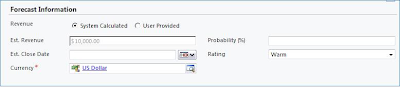
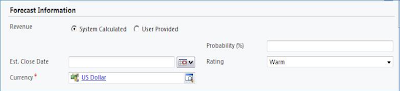
Say for example you would like to hide the Estimate Revenue field from the form and make it available conditionally.

Simple script to hide the field would display the form as shown below.

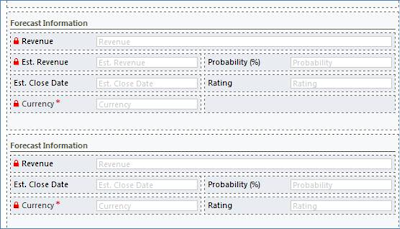
To make sure that such empty spaces are not visible on the form, you can instead create 2 sections on the form, one with the Est. Revenue field and the other without the field.

Through script you can then show/hide the entire section. This way the form layout is not affected.
Friday, January 6, 2012
Read Form Id or Form XML of a specified entity form
During the development we once came across the need to get the Formid for each of the forms created for an entity. We did not want to hard code the formid in the ribbon button as the id’s may change between test and production environments.
We can programmatically retrieve the FormId of an entity through Jscript.
The schema name for the entity that stores the information about the various forms is SystemForm. The code below retrieves the id for the specified form based on the form name.
function RetrieveGetFormIDRecord(formName)
{
var cols="";
try
{
var xml = "<soapenv:Envelope xmlns:soapenv='http://schemas.xmlsoap.org/soap/envelope/'>"+
" <soapenv:Body>"+
" <RetrieveMultiple xmlns='http://schemas.microsoft.com/xrm/2011/Contracts/Services' xmlns:i='http://www.w3.org/2001/XMLSchema-instance'>"+
" <query i:type='a:QueryExpression' xmlns:a='http://schemas.microsoft.com/xrm/2011/Contracts'>"+
" <a:ColumnSet>"+
" <a:AllColumns>false</a:AllColumns>"+
" <a:Columns xmlns:b='http://schemas.microsoft.com/2003/10/Serialization/Arrays'>"+
" <b:string>formid</b:string>"+
" </a:Columns>"+
" </a:ColumnSet>"+
" <a:Criteria>"+
" <a:Conditions>"+
" <a:ConditionExpression>"+
" <a:AttributeName>name</a:AttributeName>"+
" <a:Operator>Equal</a:Operator>"+
" <a:Values xmlns:b='http://schemas.microsoft.com/2003/10/Serialization/Arrays'>"+
" <b:anyType i:type='c:string' xmlns:c='http://www.w3.org/2001/XMLSchema'>"+formName+"</b:anyType>"+
" </a:Values>"+
" </a:ConditionExpression>"+
" </a:Conditions>"+
" <a:FilterOperator>And</a:FilterOperator>"+
" <a:Filters />"+
" </a:Criteria>"+
" <a:Distinct>false</a:Distinct>"+
" <a:EntityName>systemform</a:EntityName>"+
" <a:LinkEntities />"+
" <a:Orders />"+
" <a:PageInfo>"+
" <a:Count>0</a:Count>"+
" <a:PageNumber>0</a:PageNumber>"+
" <a:PagingCookie i:nil='true' />"+
" <a:ReturnTotalRecordCount>true</a:ReturnTotalRecordCount>"+
" </a:PageInfo>"+
" <a:NoLock>false</a:NoLock>"+
" </query>"+
" </RetrieveMultiple>"+
" </soapenv:Body>"+
"</soapenv:Envelope>";
// Prepare the xmlHttpObject and send the request.
var xHReq = new ActiveXObject("Msxml2.XMLHTTP");
xHReq.Open("POST", Xrm.Page.context.getServerUrl() + "/XRMServices/2011/organization.svc/web", false);
xHReq.setRequestHeader("SOAPAction", "http://schemas.microsoft.com/xrm/2011/Contracts/Services/IOrganizationService/RetrieveMultiple");
xHReq.setRequestHeader("Content-type", "text/xml; charset=utf-8");
xHReq.setRequestHeader("Content-Length", xml.length);
xHReq.send(xml);
// Capture the result.
var resultXml = xHReq.responseXML;
var errorCount = resultXml.selectNodes('//error').length;
if (errorCount != 0)
{
var msg = resultXml.selectSingleNode('//description').nodeTypedValue;
alert(msg);
return;
}
// Parse and display the results.
var results = resultXml.getElementsByTagName('a:Entity');
//if only one zip code records found
if (results.length != 0 )
{
//alert("Lenght: "+results.length);
var attribs = results[0].getElementsByTagName('a:Attributes/a:KeyValuePairOfstringanyType');
if (attribs.length == 0)
{
alert("No data found in enitty.");
return;
}
if(attribs[0].selectSingleNode('./b:key').nodeTypedValue =="formid" )
{
//set the field values
var value= attribs[0].selectSingleNode('./b:value').nodeTypedValue;
alert("FormID:"+value);
}
}
}//end of try
catch(e)
{
alert("RetrieveGetFormIDRecordErr: "+e.description);
}
}//end of RetrieveGetFormIDRecord
</Snip>
In the above code, we just need to pass the form name and it will return the form id. In the above query we can add the condition to filter by an entity like account forms as well by setting the “objecttypecode”.
Once you have the formid you can open the form using the following url
var accountPage= Xrm.Page.context.getServerUrl()+ "/main.aspx?etn=account&extraqs=formid%3D"+value+"%0D%0A&pagetype=entityrecord";
window.open(accountPage);
Thursday, January 5, 2012
MVP Awarded!
Well done!!!